

TL;DR:
- Remote access failures on home networks often stem from ISP issues like CGNAT, preventing port forwarding, or misconfigured hardware. Checking for CGNAT, updating device IPs, clearing cached credentials, and inspecting physical hardware help resolve these problems. Using services like Rslvd can bypass CGNAT and improve remote connection reliability without changing ISPs.
Remote access failure on a home network is defined as the inability of an external device to establish a working connection to services or machines inside the home, caused by network restrictions, firewall misconfigurations, ISP policies such as Carrier-Grade NAT (CGNAT), or stale credentials. Both home users and IT professionals hit these walls regularly, and the root causes are almost never obvious at first glance. Roughly 42% of US adults experience unreliable home internet regularly, which means the environment remote access depends on is already fragile. Knowing exactly why remote access fails on a home network is the first step toward fixing it for good.
Why remote access fails home network: CGNAT is the hidden culprit
Carrier-Grade NAT is the single most misunderstood cause of remote access failure on home networks. ISPs use CGNAT to assign private IP addresses to customer routers and then share one public IP address across hundreds of subscribers. That architecture means your router never actually owns a routable public IP, so any port forwarding rule you create at home is invisible to the outside world.
CGNAT forces hundreds of customers to share one public IP address, making router port forwarding completely ineffective. That is not a configuration error on your part. It is a structural limitation imposed by the ISP, and no amount of router tweaking will fix it without either paying for a dedicated public IP or using a tunneling service.
The problem compounds when you also have an ISP-supplied modem running NAT alongside your own router. This double NAT scenario creates two layers of address translation. Traffic arriving from outside hits the ISP modem first, which has no forwarding rules, and the connection dies before it ever reaches your router.
To detect CGNAT, compare the WAN IP shown in your router's admin panel against your public IP as reported by a site like whatismyip.com. If the two addresses differ, you are behind CGNAT.
- Your router's WAN IP starts with 100.64.x.x through 100.127.x.x: confirmed CGNAT range.
- WAN IP is a private range like 10.x.x.x or 192.168.x.x: double NAT from ISP modem.
- WAN IP matches your public IP: no CGNAT, port forwarding can work.
- ISPs also block common ports like 80, 443, 22, and 3389 by policy, even when CGNAT is not present.
- Dynamic IP addresses change on router reboots or lease renewals, breaking any DNS records pointing to your home.
Pro Tip: Ask your ISP directly whether your account uses CGNAT. Many will assign a dedicated public IP for a small monthly fee, which immediately restores port forwarding capability.
What home network configuration mistakes cause remote access failure?
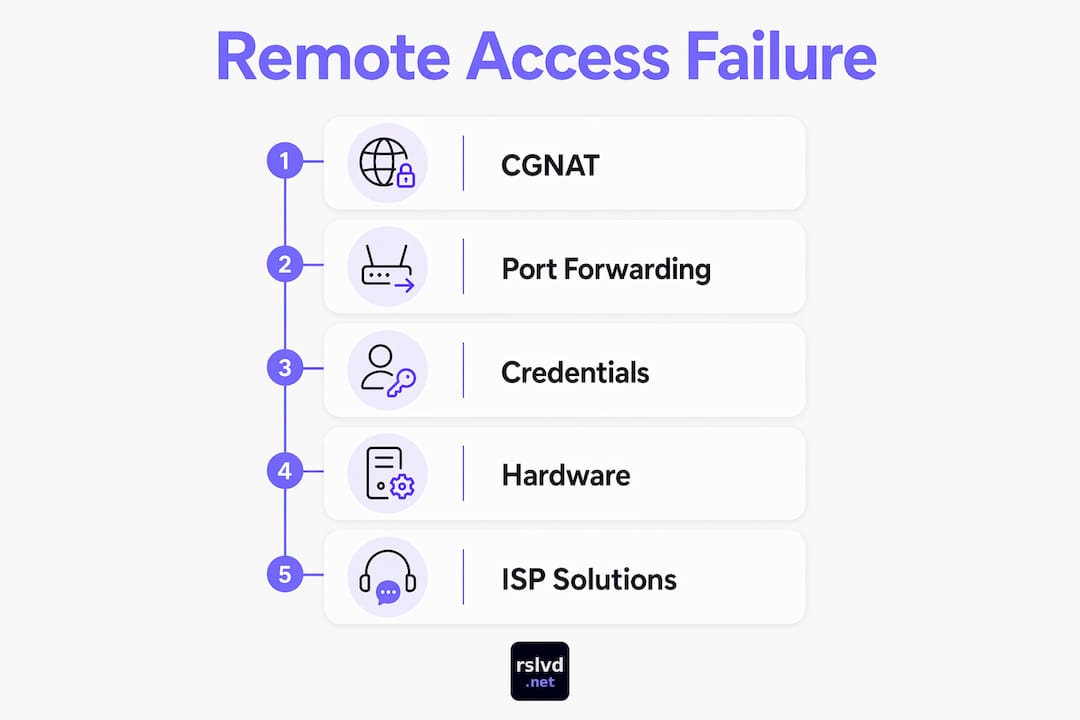
Even without CGNAT, misconfigured routers and firewalls block remote connections constantly. The most common mistake is setting up port forwarding rules that point to a device IP address that has since changed. DHCP assigns IP addresses dynamically, and dynamic IP changes cause port forwarding to point to the wrong device after a lease renewal. The forwarding rule still exists, but it now sends traffic to an empty address or the wrong machine entirely.

Firewall rules at both the router level and the operating system level add another layer of failure. Windows Firewall, for example, maintains separate rule sets for public and private network profiles. A machine classified under the public profile blocks inbound RDP traffic by default, even when the router's port forwarding is correctly configured.
Here is a systematic checklist for fixing configuration errors:
- Assign static IP addresses or DHCP reservations to every device you plan to access remotely. This prevents the forwarding target from shifting after a lease renewal.
- Verify the port forwarding rule in your router matches the exact internal IP and port of the target service. RDP uses port 3389, SSH uses port 22.
- Check the Windows Firewall profile on the target machine. Set the active network connection to "Private" so inbound remote desktop rules apply correctly.
- Disable the ISP modem's NAT function if you are running your own router behind it. Put the modem in bridge mode to eliminate double NAT.
- Test port accessibility from outside using an online port checker after making changes, not from inside the same network.
Pro Tip: Use your router's DHCP reservation feature rather than setting a static IP directly on the device. Reservations are managed centrally and survive device resets.
Windows firewall and network profile settings silently block remote desktop traffic even when the network and ports are properly configured. That silence is what makes this category of error so frustrating. The connection attempt simply times out with no useful error message.
How do credential and software issues affect remote access?
Authentication failures are the third major category of remote access problems, and they are the easiest to overlook because they look identical to network failures from the outside. The connection attempt fails, and the error message rarely tells you whether the problem is the network or the password.
Cached credentials often silently cause RDP connection failures after password changes. Windows Credential Manager stores TERMSRV/ entries that contain the old password. When you connect, Windows sends the cached credentials automatically, the server rejects them, and the session fails without prompting you to re-enter your password. Clearing those entries manually from Credential Manager resolves the issue immediately.
Software configuration on the target machine creates additional failure points:
- Remote Desktop service must be running. Open Services on the target machine and confirm "Remote Desktop Services" is set to Automatic and currently running.
- Windows Hello PIN conflicts with RDP. Accounts configured for PIN-only sign-in can block network-based authentication. Switch the account to password authentication for remote sessions.
- Microsoft Account sign-in creates credential format issues. Use the full Microsoft Account email address as the username in the RDP client, not just the local display name.
- SSH daemon must be active on Linux or Windows targets. Run
systemctl status sshdto confirm the service is listening on port 22. - Firewall rules must explicitly allow the service port. Even with Remote Desktop enabled in Windows Settings, a custom firewall rule may still block port 3389.
The network profile issue deserves special attention. All devices failing points to a router or ISP problem, while a single device failing points to that device's network profile or DNS configuration. Apply the same logic to remote access: if you can reach other services on the same machine but not RDP, the problem is almost certainly the firewall profile or the service itself.
What hardware factors degrade remote access reliability?
Physical network quality directly affects remote access stability, and most users never check it. Failing Ethernet cables, cheap unmanaged switches, and half-duplex negotiation cause packet loss that manifests as intermittent drops during remote sessions. A cable that passes a basic connectivity test can still introduce enough packet loss to make an RDP session unusable.
Half-duplex auto-negotiation is a particularly sneaky problem. When a network card and a switch fail to agree on full-duplex mode, the link falls back to half-duplex. Half-duplex links experience collisions whenever both ends transmit simultaneously, which causes retransmissions and latency spikes. Remote desktop protocols are sensitive to both, so sessions stutter or disconnect even though the link shows as "connected."
| Hardware issue | Symptom | Diagnostic method |
|---|---|---|
| Damaged Ethernet cable | Intermittent drops, packet loss | Replace cable, run ping with large packets |
| Cheap unmanaged switch | Random disconnections under load | Check switch port LEDs, test with direct connection |
| Half-duplex negotiation | High latency, session stuttering | Check link speed/duplex in adapter settings |
| Wireless mesh backhaul | Elevated latency, jitter | Run traceroute to identify backhaul hop latency |
| Overloaded router CPU | Slow response, dropped sessions | Check router admin panel for CPU usage |
Fiber-optic upgrades fix internet delivery but do not resolve internal network limitations like poor router placement and hardware bottlenecks. Upgrading your ISP connection while keeping a failing switch or a degraded cable inside the home produces no improvement in remote access reliability.
Pro Tip: Run a continuous ping to your router's internal IP while wiggling Ethernet cables. Any packet loss that appears when you move the cable confirms a physical fault.
Wireless mesh systems introduce another variable. The backhaul link between mesh nodes adds latency and can drop packets under interference. For devices you access remotely, a wired Ethernet connection to the router is always more reliable than a wireless mesh hop.
Key Takeaways
Remote access on home networks fails most often because of CGNAT, misconfigured port forwarding, stale credentials, or degraded physical hardware, and each layer requires a separate diagnostic approach.
| Point | Details |
|---|---|
| CGNAT blocks inbound traffic | Check if your WAN IP differs from your public IP; contact your ISP about a dedicated address. |
| Port forwarding breaks with DHCP | Assign DHCP reservations to remote devices so forwarding rules always point to the correct IP. |
| Cached credentials cause silent failures | Clear TERMSRV/ entries in Windows Credential Manager after any password change. |
| Firewall profiles block RDP silently | Set the target machine's network connection to Private to allow inbound remote desktop rules. |
| Physical hardware causes packet loss | Replace suspect cables and check for half-duplex negotiation on switches and adapters. |
The layer most people skip when troubleshooting remote access
After years of diagnosing remote access failures, the pattern I see most often is users jumping straight to router settings while skipping the ISP layer entirely. CGNAT is invisible inside the home network. Your router looks perfectly configured, port forwarding rules are in place, and the firewall is open. The connection still fails because the ISP never delivers the inbound traffic to your router in the first place.
The second most skipped layer is credentials. An RDP session that fails with a generic error after a password change is almost always a Credential Manager problem, not a network problem. I have watched IT professionals spend an hour checking firewall rules when the fix was a 30-second credential cache clear.
My recommended workflow is to check in this order: ISP and CGNAT first, then router configuration, then OS-level firewall and network profiles, then credentials, and finally physical hardware. Hardware problems are the least common cause of total failure but the most common cause of intermittent drops that are hard to reproduce. Skipping any layer wastes time and leads to false conclusions.
— Garet
Rslvd makes dynamic IPs and CGNAT manageable
Remote access problems tied to dynamic IPs and CGNAT do not require an ISP upgrade to fix. Rslvd provides dynamic DNS and TCP tunneling that bypasses CGNAT entirely, giving your home services a stable, reachable address without a static IP or complex ISP negotiations.
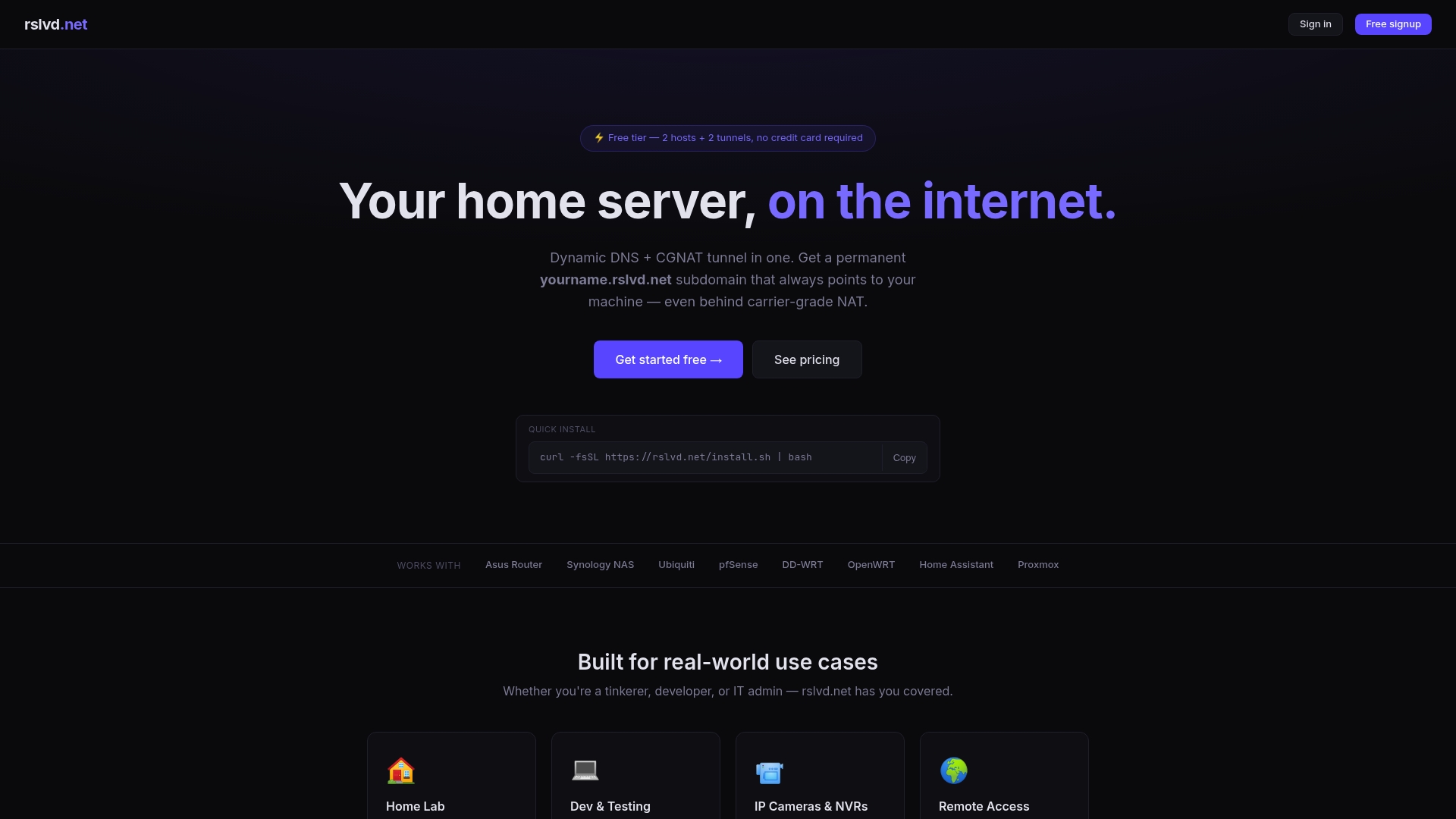
Rslvd works for SSH, RDP, and IP camera access, and it is operational within seconds of setup. There is no bandwidth cap, and no port forwarding configuration is required on your router. For home users and IT professionals who need reliable remote connections without fighting ISP restrictions, Rslvd removes the most stubborn layer of the problem cleanly and directly.
FAQ
What is the most common reason remote access fails on home networks?
CGNAT is the most common cause. ISPs assign private IPs to home routers and share one public IP across many subscribers, which makes port forwarding rules ineffective for inbound connections.
How do I know if my ISP uses CGNAT?
Compare your router's WAN IP address with your public IP from a site like whatismyip.com. If the two addresses differ, your ISP is using CGNAT.
Why does my RDP connection fail after I change my password?
Windows Credential Manager caches old passwords as TERMSRV/ entries and sends them automatically. Clear those entries from Credential Manager and reconnect with your new password.
Can a bad Ethernet cable cause remote access to drop intermittently?
Yes. Damaged cables and cheap switches introduce packet loss that disrupts remote desktop sessions even when the connection appears active. Replace suspect cables and test with a direct connection to the router.
Does upgrading to fiber internet fix remote access problems?
Fiber fixes the connection between your home and the ISP, but it does not resolve internal issues like misconfigured firewalls, CGNAT, or faulty hardware inside the home network.