
TL;DR:
- Remote work connectivity problems mainly involve unreliable internet, network instability, and VPN issues that hinder effective collaboration. Troubleshooting includes power cycling hardware, testing wired connections, and optimizing Wi-Fi to restore stable access. Fixing latency and establishing tested backups are key to maintaining reliable remote access and productivity.
Common remote work connectivity issues are defined as recurring technical failures in internet access, network stability, or remote access tools that reduce a worker's ability to communicate and collaborate effectively. These problems are not minor inconveniences. Unreliable internet causes roughly 30 minutes of lost productivity per employee each day, with 41% of professionals losing at least three hours per week. Professional remote work requires 10–25 Mbps download and 5–10 Mbps upload speeds, with latency below 50ms for stable video calls. Understanding which problems hit hardest, and how to fix them, is the fastest path back to full productivity.
1. What are the most common remote work connectivity issues?
Slow or unstable internet is the most reported connectivity challenge for remote teams. Bandwidth congestion, especially during peak hours, throttles speeds even on plans that look adequate on paper. The result is choppy video, delayed file uploads, and dropped calls at the worst possible moments.

High latency and jitter rank just as damaging as raw speed problems. Latency above 100ms breaks the natural flow of conversation during video calls, making real-time collaboration feel clunky and exhausting. Jitter, which is the variation in packet delivery time, causes audio to stutter even when average latency looks acceptable.
VPN connection drops are a constant frustration. ISP resets, hardware incompatibilities, and DNS conflicts all cause VPN tunnels to disconnect mid-session. Workers often lose unsaved work or get locked out of internal systems when this happens.
Wi-Fi interference at home offices is underestimated. Neighboring networks, microwave ovens, baby monitors, and Bluetooth devices all compete on the 2.4 GHz band. Moving to the 5 GHz band or switching Wi-Fi channels reduces interference significantly.
Hardware failures including aging routers and modems cause intermittent drops that are hard to diagnose. A router running for years without a firmware update is a reliability risk, not just a security one.
Insufficient upload speeds hurt more than most workers realize. Video conferencing, screen sharing, and cloud file syncing all depend on upload bandwidth. A plan with 100 Mbps download but only 5 Mbps upload will bottleneck video quality noticeably.
Security risks from unmanaged networks round out the list. Consumer-grade home networks give employers no visibility into traffic, creating shadow IT risks and potential data exposure that most workers never consider.
Pro Tip: If your connection feels slow only at certain times of day, the problem is almost certainly ISP peak-hour congestion, not your hardware. Run a speed test at 9 AM and again at 7 PM and compare the results.
2. How to diagnose and troubleshoot home network problems
Power cycling your modem and router is the correct first step for most connectivity failures. The sequence matters: power off the modem first, wait 60 seconds, then power it back on before restarting the router. This proper restart sequence resolves the majority of basic connection problems in under 15 minutes.
Connecting directly via Ethernet cable to your modem is the only definitive way to rule out Wi-Fi as the cause of a problem. If the wired connection works fine but Wi-Fi does not, the issue is in your wireless setup, not your ISP. Testing with an Ethernet cable directly into the modem eliminates an entire category of variables at once.
Use a speed test tool to measure download speed, upload speed, latency, and jitter together. A single metric tells you very little. Comparing all four gives you a complete picture of where the bottleneck actually sits.
- Check your ISP's service status page before assuming the problem is local
- Look up your plan's contention ratio. Consumer ISP contention ratios cause peak-hour slowdowns that are frequently mistaken for hardware failures
- Switch your router's Wi-Fi channel to a less congested option using a free Wi-Fi analyzer app
- Check for DNS errors. A "DNS_PROBE_FINISHED_NO_INTERNET" message points to a name resolution failure, not a physical connection problem
- Update your router's firmware. Manufacturers release updates that fix stability bugs, not just security patches
Pro Tip: Keep an Ethernet cable plugged into your router and routed to your desk, even if you normally use Wi-Fi. During critical calls or deadlines, plug in and eliminate Wi-Fi as a variable entirely.
3. What VPN and security issues disrupt remote workers most?
VPN problems are among the most disruptive connectivity challenges for remote teams because they block access to internal systems entirely, not just slow them down. The most common causes are ISP session resets, outdated VPN client software, and DNS conflicts that leave workers in a "connected but no internet" state.
Legacy VPN architectures route all traffic through a centralized gateway, which creates a bottleneck. Every packet from a remote worker travels to a central data center before reaching its destination, adding latency and increasing packet loss. This architecture made sense when offices were the norm. For distributed teams, it is a structural disadvantage.
DNS conflicts are a specific and fixable problem. When a VPN forces DNS queries through its own servers but those servers are unreachable, the connection stalls. DNS issues with VPN are responsible for a large share of "connected but no internet" complaints that workers incorrectly attribute to their ISP.
MTU mismatches inside VPN tunnels cause a subtler problem. MTU mismatches in VPN tunnels silently drop large packets, causing file transfers to hang even when the VPN status shows "connected." Lowering the MTU setting on the VPN adapter to 1400 bytes often resolves this without any other changes.
- Enable the "Keep Alive" setting in your VPN client to prevent idle timeouts from dropping the tunnel
- Set a public DNS server like 8.8.8.8 as a fallback when VPN DNS fails
- Ask your IT team whether the organization uses split tunneling, which routes only work traffic through the VPN and keeps general browsing on your local connection
- Consider whether cloud-native or SASE architectures are available. Moving to SASE removes the centralized bottleneck and improves performance for distributed teams
- Report persistent VPN drops to IT with timestamps. Patterns reveal whether the cause is ISP-side resets or server-side configuration issues
4. What strategies improve remote connectivity reliability?
Upgrading to a business-grade symmetrical fiber connection is the single most effective infrastructure change a remote worker can make. Symmetrical fiber provides equal download and upload speeds, which directly improves video quality and cloud sync performance. For power users, 50 Mbps symmetrical speed is the recommended baseline for heavy collaborative tasks.
Redundancy is the strategy that separates workers who lose hours to outages from those who lose minutes. A secondary connection, kept ready but idle, activates when the primary fails. The two most practical options are 5G mobile hotspots and Starlink satellite internet.
5G hotspots deliver 100–1,000 Mbps speeds with WPA3 security, making them a genuine primary connection alternative in well-covered areas. Starlink provides 25–100 Mbps with 20–40ms latency, which is sufficient for video calls and file sharing in locations where fiber is unavailable.
Quality of Service (QoS) settings on your router let you prioritize real-time traffic like video calls and voice over background tasks like software updates or cloud backups. Most modern routers include QoS controls in their admin panel. Setting video conferencing applications to the highest priority prevents a background download from degrading a live meeting.
Managed SD-WAN solutions go further by automatically routing traffic across multiple connections and maintaining 99.9% uptime for remote workers. These are typically deployed by employers rather than individuals, but workers should advocate for them when connectivity problems are chronic.
Pro Tip: Test your failover connection monthly by disconnecting your primary internet and confirming your backup actually works. A backup you have never tested is not a backup.
Key Takeaways
Fixing remote work connectivity problems requires addressing both the physical network layer and the software configuration layer. Redundancy, correct troubleshooting sequence, and VPN hygiene together eliminate the majority of downtime remote workers experience.
| Point | Details |
|---|---|
| Latency matters more than speed | Latency above 100ms breaks video calls even when download speeds look healthy. |
| Power cycle in the right order | Restart the modem first, wait 60 seconds, then restart the router to resolve most basic issues. |
| VPN DNS conflicts cause "no internet" errors | Set a public DNS fallback to prevent VPN-related connectivity stalls. |
| Redundancy prevents lost hours | Keep a 5G hotspot or Starlink connection ready as a tested backup for primary outages. |
| Unmanaged home networks create security gaps | Consumer-grade connections expose employers to shadow IT risks and limited network visibility. |
The latency problem nobody talks about enough
Most remote workers fixate on download speed when their connection feels bad. That instinct is understandable but usually wrong. In my experience working with distributed teams and home network setups, latency and jitter cause far more collaboration friction than raw bandwidth ever does.
A 200 Mbps connection with 150ms latency will feel worse on a video call than a 25 Mbps connection with 30ms latency. The numbers on your speed plan are marketing. The latency your packets actually experience is reality. The gap between those two things is where most remote work frustration lives.
The other thing I have seen workers consistently underestimate is the value of a tested backup connection. Not a backup they bought and set aside. A backup they have actually used, confirmed works, and can switch to in under two minutes. That distinction matters enormously when a client call starts in five minutes and your primary connection goes dark.
The most underrated skill in remote work is being able to tell your employer or IT team exactly what is wrong. "My internet is slow" gets you nowhere. "My latency spikes above 200ms between 5 PM and 8 PM, my upload speed drops to 2 Mbps, and a direct Ethernet connection to the modem shows the same results" gets you a real conversation and a real fix.
— Garet
Rslvd and stable remote access beyond the connection itself
Fixing your connection speed and latency solves most remote work internet problems. But one issue persists even on a perfect connection: your IP address changes, and the services you need to reach stop responding.
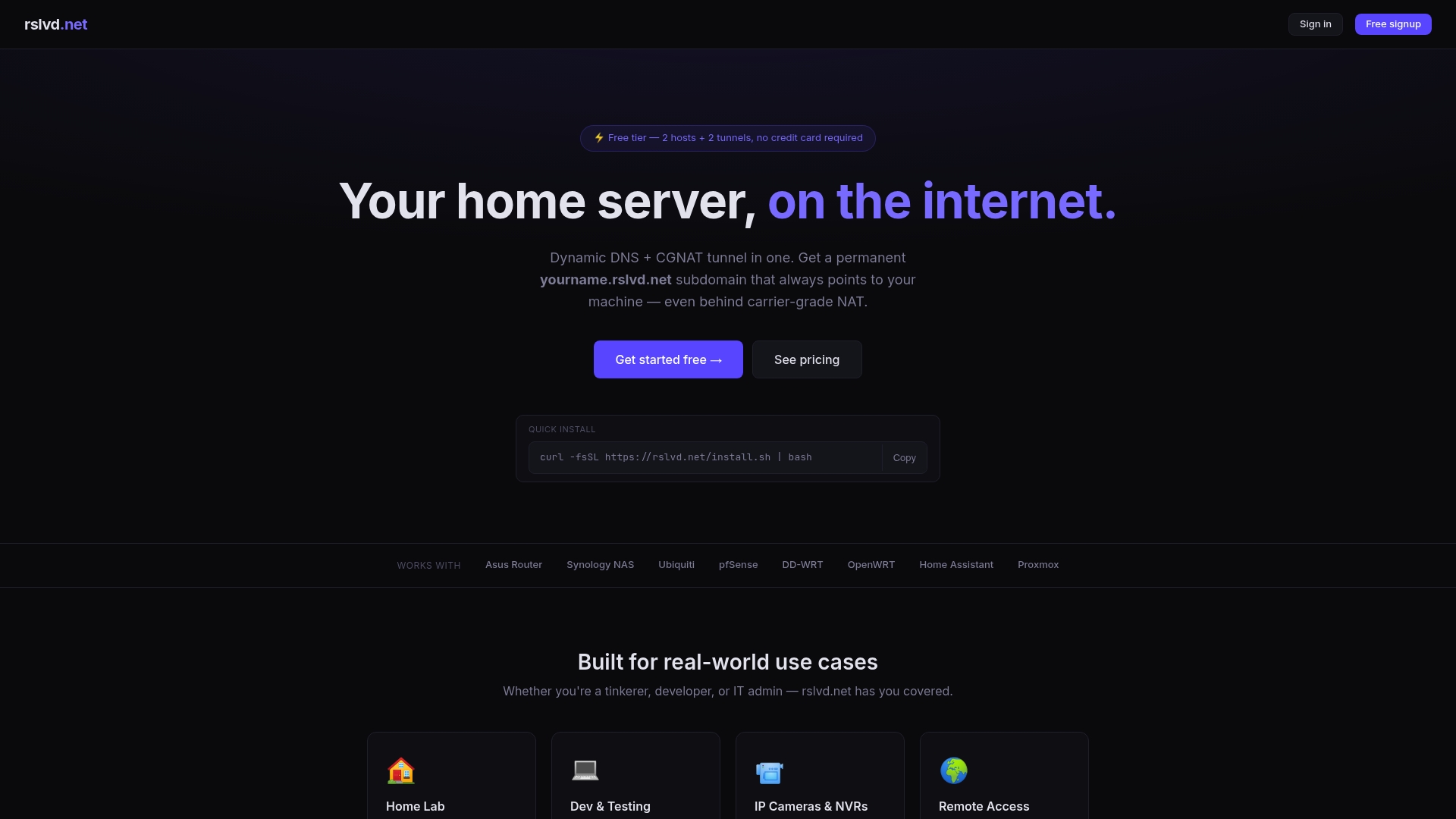
Rslvd solves this with dynamic DNS and NAT/CGNAT tunneling that keeps your remote access stable regardless of what your ISP does to your IP address. Whether you need SSH access to a home server, RDP into a work machine, or a consistent endpoint for an IP camera, Rslvd creates a reliable tunnel that works without static IP addresses or complex ISP configurations. Setup takes seconds, and there are no bandwidth limits. For remote workers and IT admins who need dependable access to local services from anywhere, Rslvd removes the last variable that a speed upgrade cannot fix.
FAQ
What internet speed do remote workers need in 2026?
Remote work requires at least 10–25 Mbps download and 5–10 Mbps upload for stable video calls, with latency below 50ms. Power users handling heavy collaborative tasks need 50 Mbps symmetrical fiber.
Why does my VPN say "connected" but I have no internet?
A DNS conflict is the most common cause. When the VPN forces DNS queries through its own servers but those servers are unreachable, browsing stalls despite the tunnel showing as active. Setting a public DNS fallback resolves this in most cases.
How long does it take to fix a business internet outage?
Basic issues resolved by power cycling take about 15 minutes. Infrastructure-level repairs on the ISP side typically require 4–8 hours, which is why a tested backup connection is a practical necessity, not a luxury.
What is the fastest way to diagnose a slow home connection?
Plug an Ethernet cable directly into your modem and run a speed test. If speeds are normal on the wired connection but slow on Wi-Fi, the problem is in your wireless setup. If speeds are slow on the wired connection too, the issue is with your ISP or modem.
What is BYOC and why does it create security risks?
BYOC stands for "Bring Your Own Connection," meaning workers use personal consumer-grade networks for work traffic. These networks give employers no visibility into traffic patterns, which creates shadow IT risks and potential data exposure that neither the worker nor the employer typically monitors.